
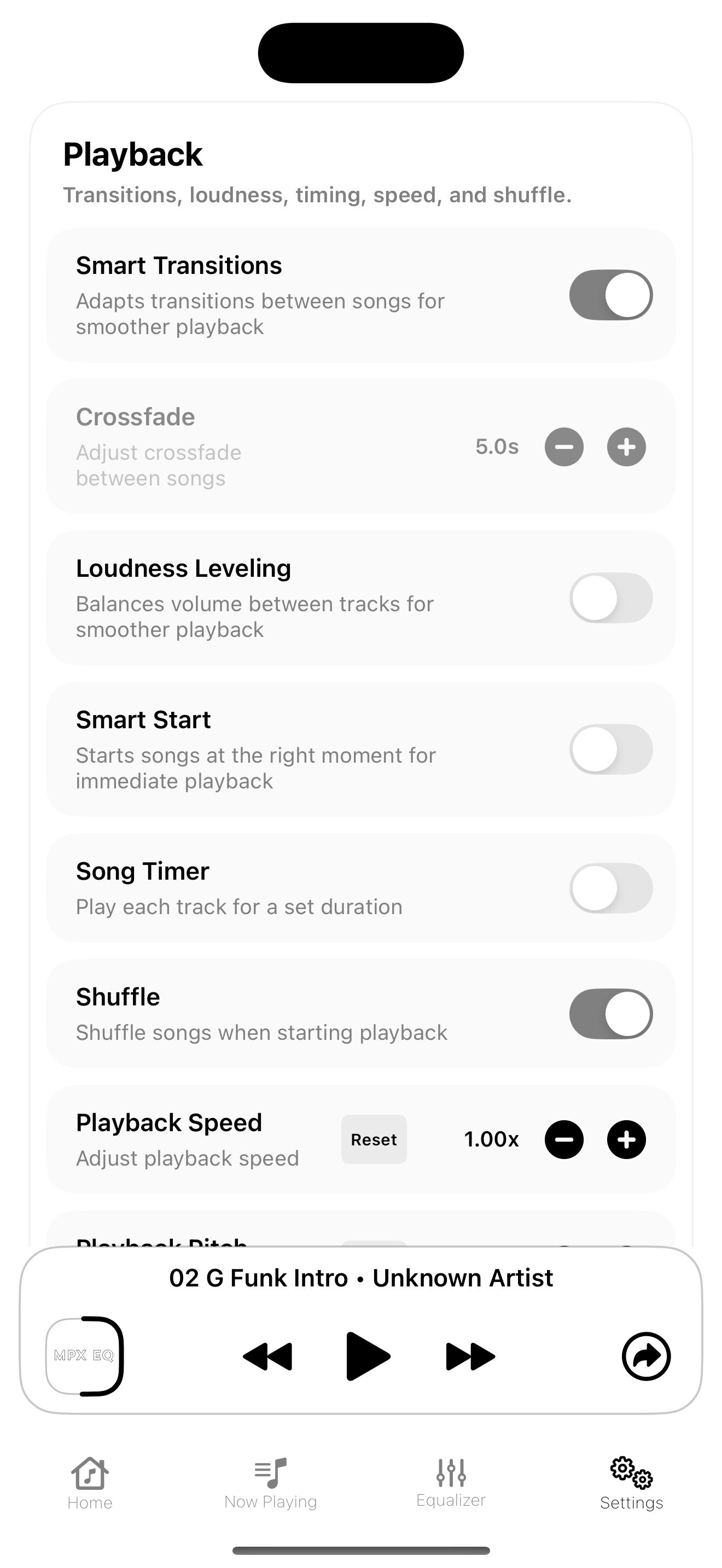
Before you start
Make sure your music files are stored on your computer in a supported format and that you are signed in to your Apple account on both your computer and your iPhone. Keep a USB cable nearby for the simplest setup.
Adding music from a Mac
On a Mac, open the Music app or Finder depending on your macOS version. Add your audio files into the Music library first if they are not already there. Then connect your iPhone to your Mac with a cable, select the device in Finder, open the Music tab, choose the songs, artists, albums, or playlists you want to sync, and apply the changes. Once syncing is complete, the music should appear on your iPhone.
Mac method, step by step
- Open Music on your Mac and import your files if needed.
- Connect your iPhone.
- Open Finder and select your iPhone in the sidebar.
- Choose the Music section.
- Turn on music syncing.
- Select the content you want on your phone.
- Click Apply or Sync and wait for the transfer to finish.
Adding music from a Windows PC
On Windows, use Apple Music for Windows or the relevant Apple device management tools available on your PC. Import your songs into the library first, connect your iPhone, select the device, enable music syncing, choose the tracks or playlists you want, and start the sync. After the transfer finishes, open your music library on iPhone and confirm the songs are there.
PC method, step by step
- Open your Apple music management app on PC.
- Import your audio files into the library.
- Connect your iPhone by cable.
- Select your iPhone inside the app.
- Turn on syncing for music.
- Choose your songs, albums, or playlists.
- Start sync and let the transfer finish completely before disconnecting.
Where MPX EQ fits in
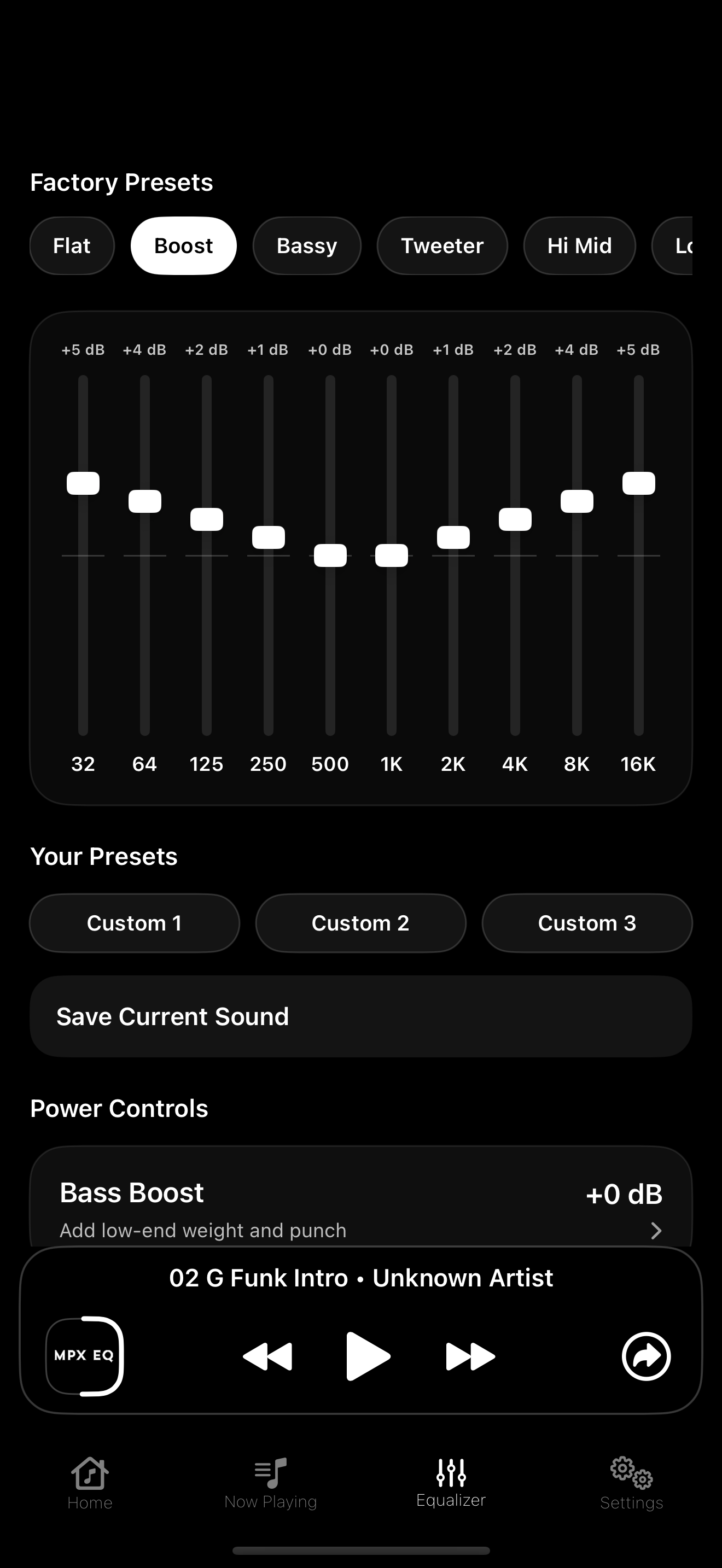
Once your tracks are on the iPhone, open MPX EQ and browse your music library from inside the app. From there, you can adjust bass, tune frequencies, save a sound profile, and listen with more control than the default experience.
Troubleshooting tips
If songs do not appear, confirm the sync completed successfully, make sure the same Apple account is being used where required, and check that the files are properly imported into the library before syncing. Reconnecting the device and syncing again often resolves missing-track issues.